View real-time data or use API with SAS URL
Step 5 — Install Marlin Connect
- Sign in to the Marlin Portal and go to Resources.
- Download Marlin Connect (current support: Windows).
- Install and launch the application.
Using Marlin Connect
Marlin Connect is the desktop application for viewing your Marlin data. It opens with the Marlin Connect Auth launcher, connects using the credentials you provide, and routes you straight into the correct viewer for your system — you do not need to pick a mode yourself.
The Marlin Connect Auth launcher
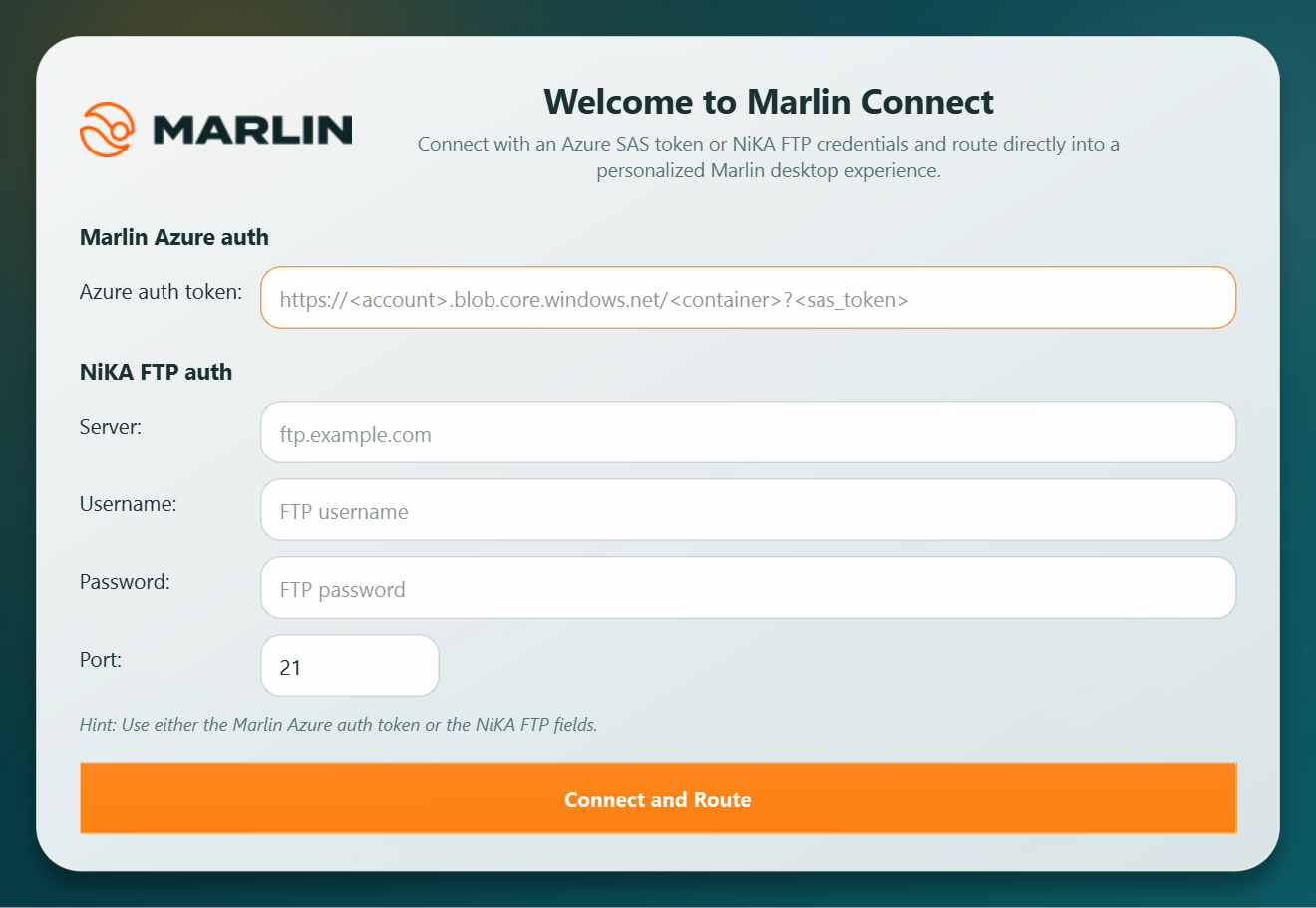
The launcher accepts one of two credential types, depending on the integration you purchased:
- Marlin Azure auth — paste your device auth token (data access URL) from the Devices page of the Marlin Portal. Use this if you have a Marlin Link with a passive acoustic recorder or a wave radar.
- NiKA FTP auth — enter the Server, Username, Password and Port for your NiKA FTP site. Use this if you have a NiKA data-only integration. See “Set up NiKA FTP access” for how to obtain these details.
Fill in one set of credentials, then click Connect and Route. Marlin Connect connects and automatically opens the viewer that matches your system.
Notes:
- Only one set of credentials can be used per session — fill in either the Azure auth token or the NiKA FTP fields, not both.
- The launcher remembers your last Azure auth token and reconnects automatically on the next launch. NiKA FTP details are never stored, so re-enter them each time you start a NiKA session.
PAM viewer — passive acoustic monitoring
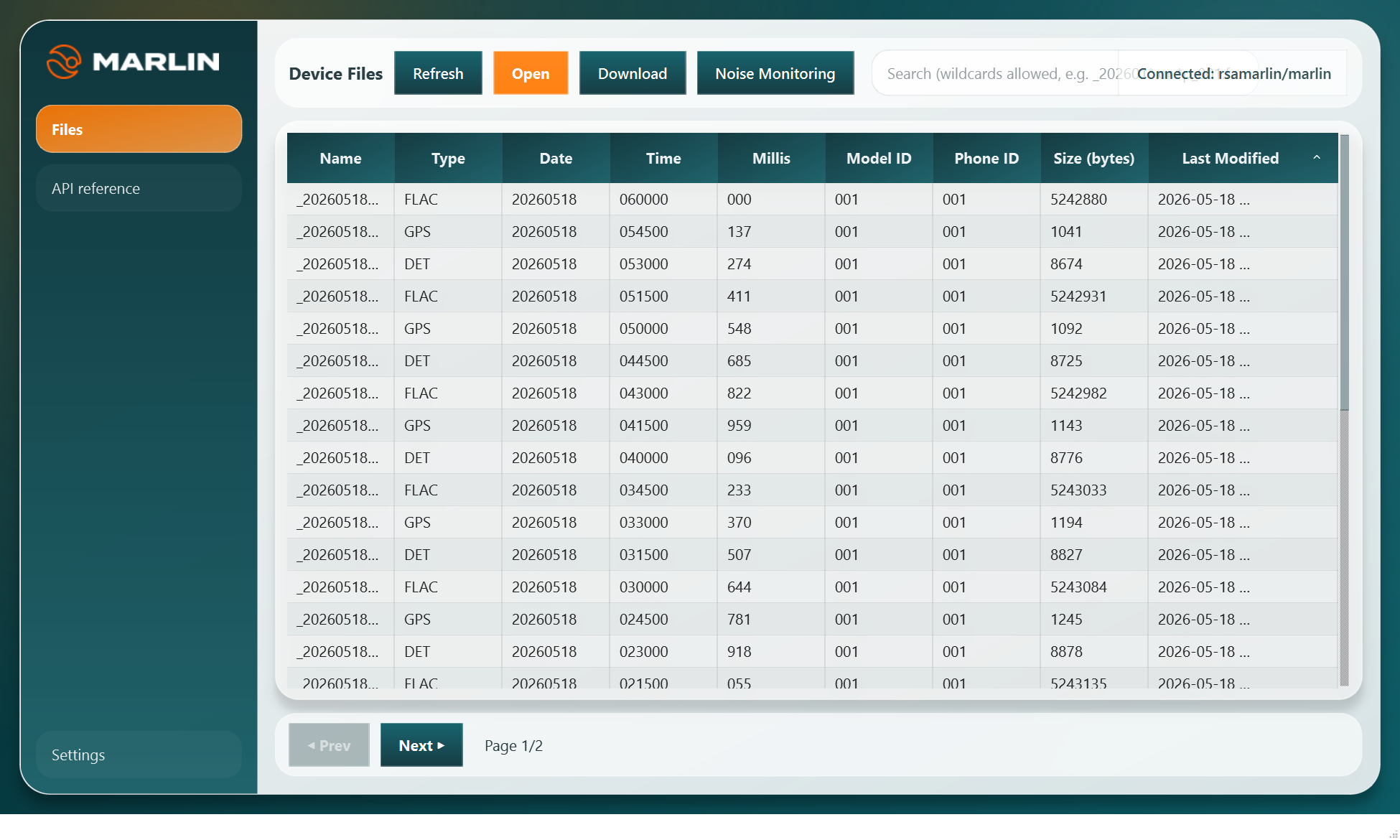
The PAM viewer opens for Marlin Link deployments with a passive acoustic recorder (Porpoise or Orca).
- Browse device files in a paged, searchable table (Name, Type, Date, Time, Size and more). Search supports wildcards.
- Open an audio (
.flac) file to view an automatically generated spectrogram, with time on the x-axis and frequency on the y-axis. - Where a matching detection (
.det) file exists, enable Plot detections to overlay detection regions on the spectrogram, with metadata on hover. - Open a GPS (
.gps) file to view its location on a map with a metadata panel. - Select one or more files and click Download to export them as a ZIP.
- If your subscription includes the Noise Monitoring add-on, the Noise Monitoring button is enabled — see Noise Monitoring below.
REX viewer — wave radar
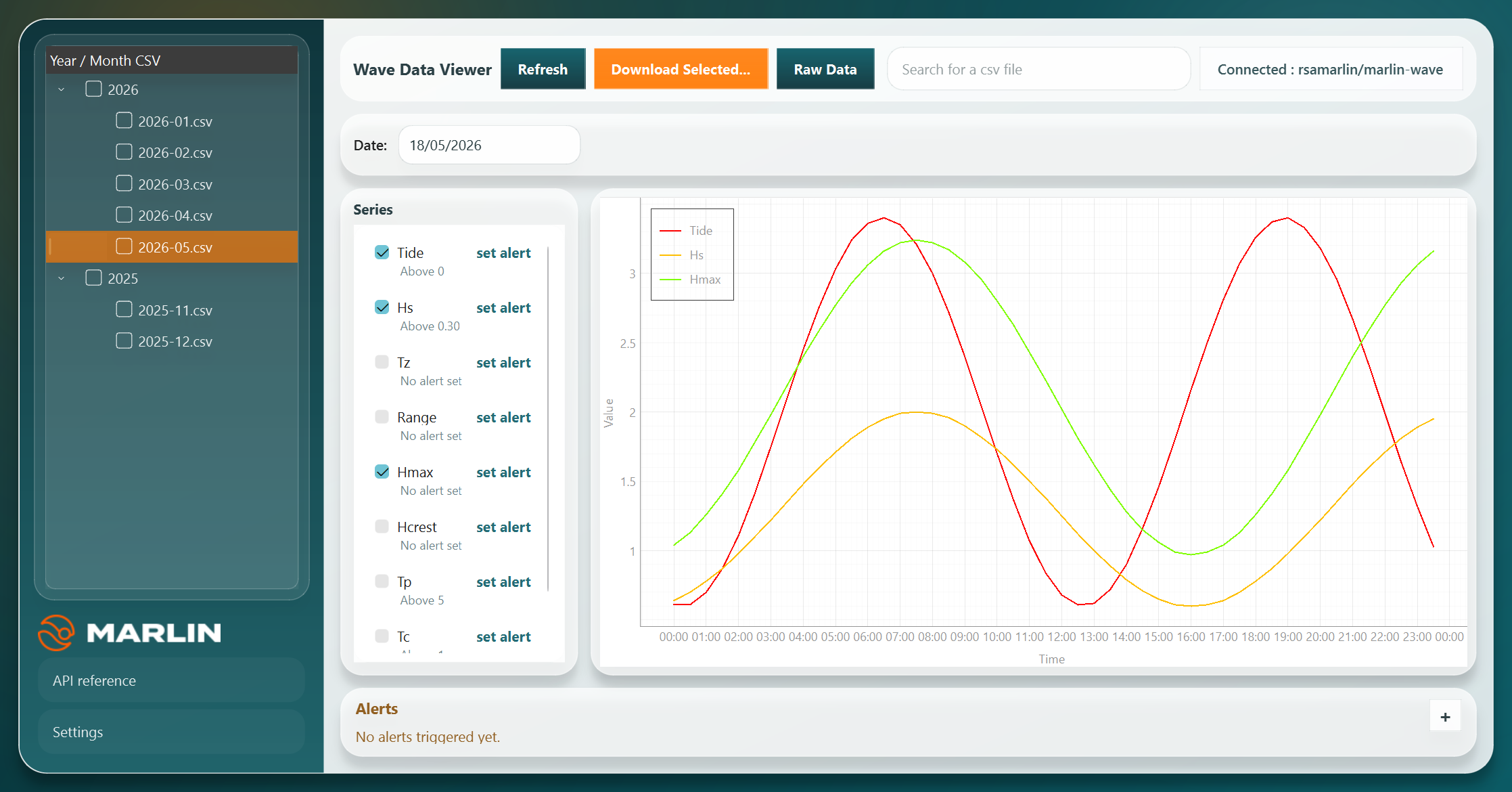
The REX viewer opens for Marlin Link deployments with a WaveRadar REX2.
- Browse monthly wave and tide CSV files in a tree grouped by year and month; filter the list with wildcard search.
- Select a month to load it. The date selector fills with the available dates and the latest date is plotted automatically.
- Use the Series panel to choose which wave and tide parameters to plot. The plot supports multiple series, hover tooltips and crosshair cursors.
- Select one or more months and click Download Selected… to export the CSV files.
- Click Raw Data to open the Raw Data dialog, which contains a raw-data browser and a Decoder Utility for decoding locally downloaded raw data.
NiKA Data Viewer
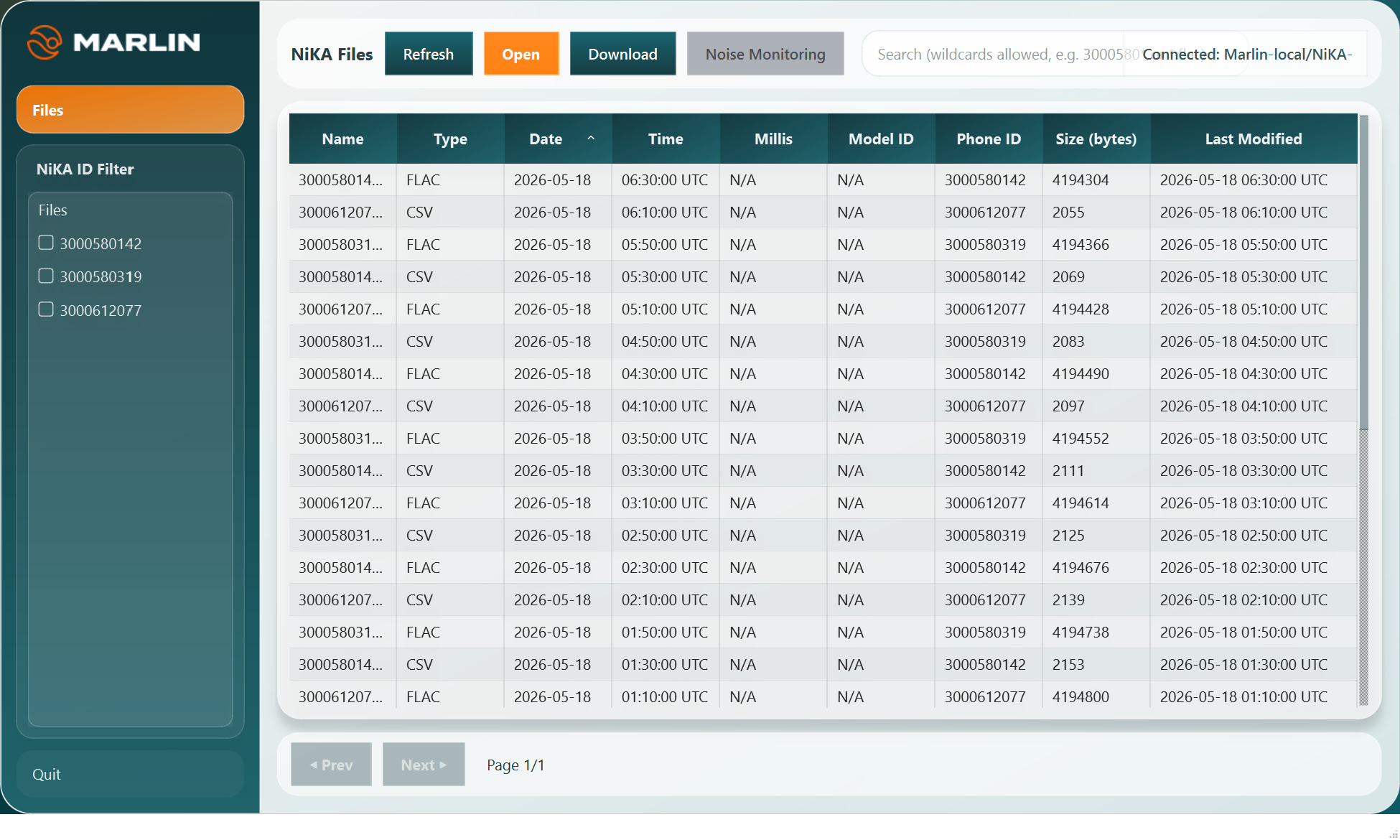
The NiKA Data Viewer opens for NiKA data-only integrations. It is a view-only viewer for the NiKA .csv and .flac files published to your NiKA FTP site.
- Browse NiKA files in a paged, searchable table.
- Use the NiKA ID Filter to show only the files for one or more NiKA sensors. Click Files to clear the filter and show every file again.
- Open a
.flacfile to view its spectrogram, together with a GPS window showing the location read from the filename. - CSV files are download-only — select files and click Download to export them as a ZIP.
- Click Quit to return to the Marlin Connect Auth launcher.
Noise Monitoring and machine-learning detections are not part of a NiKA data-only integration. To add these for NiKA data, contact RS Aqua about a Marlin processing upgrade.
Email alerts
Marlin Connect can email you when a monitoring threshold is breached. This is available in the PAM and REX viewers.
In Settings, enter an email for alerts, tick Enable email alerts, and use Test email to confirm delivery. Alerts are then sent for PAM noise threshold breaches and REX wave parameter alerts.
Background mode and the system tray
In Settings, tick Enable (minimise to tray on close) to keep Marlin Connect running when you close the window, so monitoring and alert delivery continue. Double-click the tray icon to restore the window, or right-click it and choose Quit to exit fully.
Settings
Open Settings from the sidebar to:
- edit your auth token / connection details
- change or clear the local cache directory (PAM)
- configure email alerts
- enable or disable background mode
Noise Monitoring
Noise Monitoring is a PAM add-on that measures underwater sound levels across a range of recordings and raises alerts when configured thresholds are exceeded. When your subscription includes it, the Noise Monitoring button in the PAM header is enabled.
Click Noise Monitoring to open the monitoring window alongside the PAM viewer. From there you can:
- Choose a monitoring mode — a bounded range between a chosen start and end file, a start file through to the latest data, or continuous real-time monitoring. Real-time modes check for new data every few minutes.
- Select the recordings to analyse using the searchable start and end file selectors.
- Set the calibration values in the settings pane — recorder full-scale input, hydrophone sensitivity, system gain, and the fixed-window SEL start and duration. These are required before monitoring can be enabled, and can only be changed while monitoring is switched off.
- Review metrics and graphs — 1/3-octave band analysis, power spectral density, and SPL / SEL acoustic metrics, shown in collapsible result sections.
- Set SPL and SEL thresholds. Each threshold breach is written to the exceedance log at the bottom of the window, with its value and timestamp.
If email alerts are enabled in Settings, an alert email is also sent for each threshold breach (see Email alerts above). Your Noise Monitoring configuration is saved and restored the next time you open the viewer.
API access
If you connect with an Azure auth token, you can also access your storage directly using the same token with the Azure SDK in Python. Please contact RS Aqua support to find out more about API integration.
API integration supports blob listing, direct downloads, automation pipelines, and custom code integration.